How to send bulk email in Outlook: 3 ways to mass email, step by step
The short answer: to send bulk or mass email in Outlook so that each person gets their own email, individually and with their own name, use a mail merge. You write the email once in Word, connect an Excel list, and Word sends one separate email per row through Outlook. If it's a quick note to a group and the email doesn't need to be personal, put the addresses in Bcc instead.
I build cold email software, and an Outlook mail merge is often the first thing people try before they look for a tool like ours. So this guide is what I'd tell a friend who asked how to do it: the exact steps, what each method can't do, and how many emails Microsoft lets you send. Everything about Outlook here comes from Microsoft's own help pages, checked on 9 October 2026. I also ran the mail merge myself on 29 October 2026 with Word and Outlook 2019 on Windows 11, and the screenshots below are from that test.
Three ways to send bulk email in Outlook
| Method | Is each email personal? | Good for |
|---|---|---|
| Mail merge (Word, Excel and classic Outlook) | Yes, names and other details from your list. Each person gets their own email. | Invitations, updates and announcements to people who know you |
| Bcc | No. One email, the same for everyone, with no names. | A quick note to a small group |
| Contact group (contact list) | No. A saved list you can drop into Bcc. | The same group of people, again and again |
If you're wondering how to send mass email in Outlook that still feels personal, it's the first one. Let's start there.
Way 1: Outlook mail merge from Excel, step by step
An Outlook mail merge is really a Word feature. Word writes the emails and hands them to Outlook, which sends them from your account. You need three things before you start:
- Word and the classic Outlook for Windows. Word's mail merge sends through classic Outlook, and the new Outlook can't run it yet (more on that below). To tell which one you have, look for a Send / Receive tab at the top: classic Outlook has it, the new Outlook doesn't (both have File now, so that's no longer a test). The new one also has a bar of app icons down the left side, with Word and Excel in it. If you're on the new one, turn off the "New Outlook" switch in the top corner to go back to classic. No switch means classic Outlook isn't installed; it comes with the desktop Microsoft 365 apps.
- Outlook set as your default email app, signed in to the account you want to send from.
- An Excel list with column names in the first row, such as FirstName, Email and Company, and one person per row. Every row needs an email address.

The steps in Word for Windows
- Make your list in Excel: column names in row 1, one person per row. Save it and close Excel,
because Word can't read the file while Excel has it open. Keep column names to one word, like FirstName.
Word turns spaces into underscores: my first test sheet had a space after the name and Word listed the
column as "FirstName_".
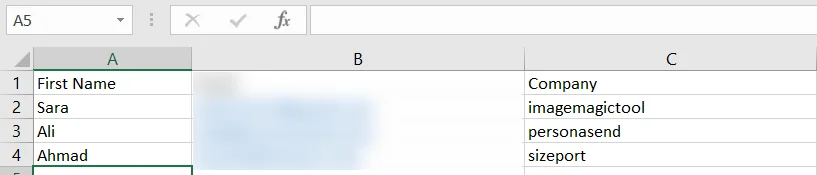
My test list, with my own addresses blurred. I renamed "First Name" to FirstName before the merge. - Open a blank document in Word and go to Mailings > Start Mail Merge > E-mail Messages.
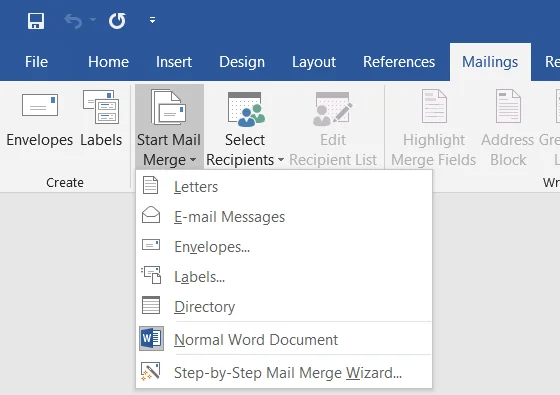
Start Mail Merge, then E-mail Messages. - Go to Mailings > Select Recipients > Use an Existing List and pick your Excel file and
the sheet your list is on (usually Sheet1$). If you can't find the file, look on your Desktop: Excel saved
mine there, not in Documents.
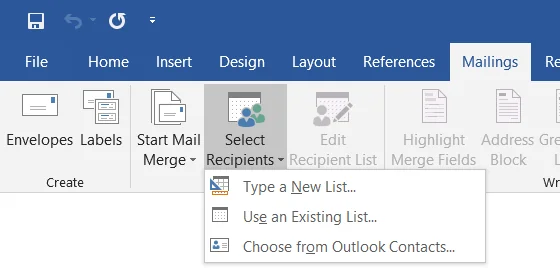
Select Recipients, then Use an Existing List. - Click Edit Recipient List to check who's in. Untick anyone you want to leave out.
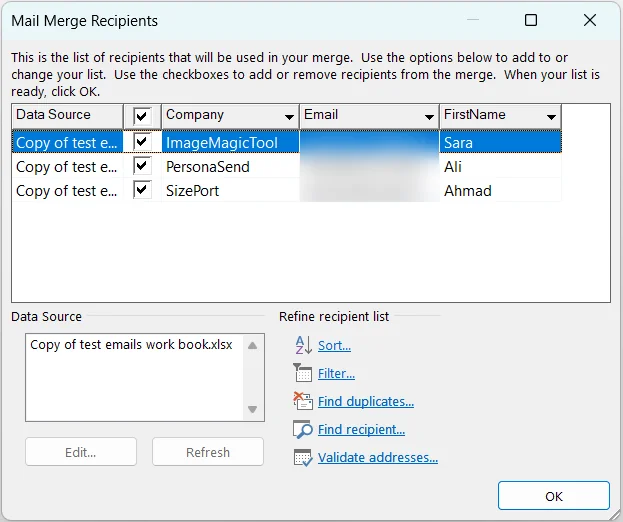
The recipient list Word read from Excel. Every ticked row becomes one email. - Write your email. Where you want a person's name, click the small arrow under
Insert Merge Field and choose the column, for example FirstName. You can add any column this
way, such as their company.
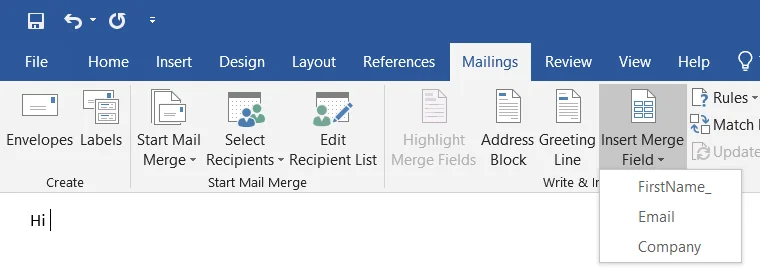
The columns from Excel. Note "FirstName_": that's the space after the column name. - Click Preview Results and step through a few people with the arrows. Look for empty names
and odd spacing now, while it's easy to fix.
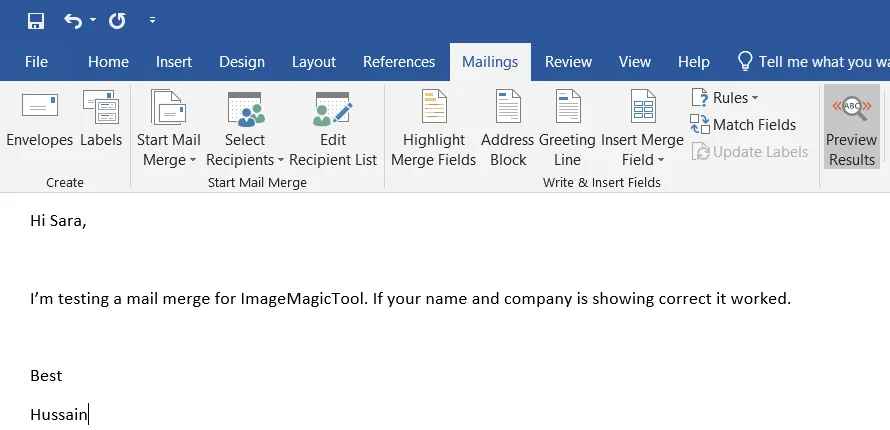
Preview Results fills in the first person: "Hi Sara" and her company. - Go to Finish & Merge > Send Email Messages.
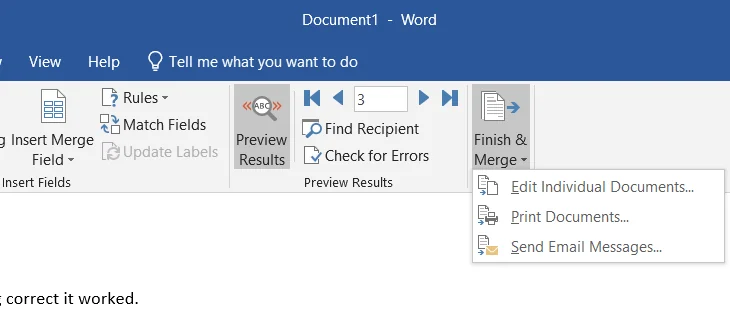
Finish & Merge, then Send Email Messages. - In To, choose your Email column. Type the Subject line, leave
Mail format on HTML, and keep Send records on All.
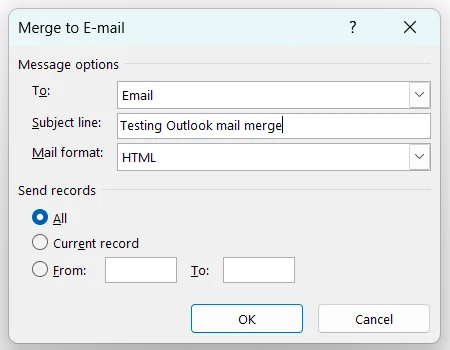
The last window before sending. The subject line is the same for everyone. - Click OK. Outlook sends one email per row. You'll see them in Sent Items, each addressed to one person.
My laptop had the new Outlook set up, and classic Outlook 2019 installed but never used. So instead of sending, Word opened classic Outlook's Add Account window: classic Outlook needs an email account of its own before Word can send through it.
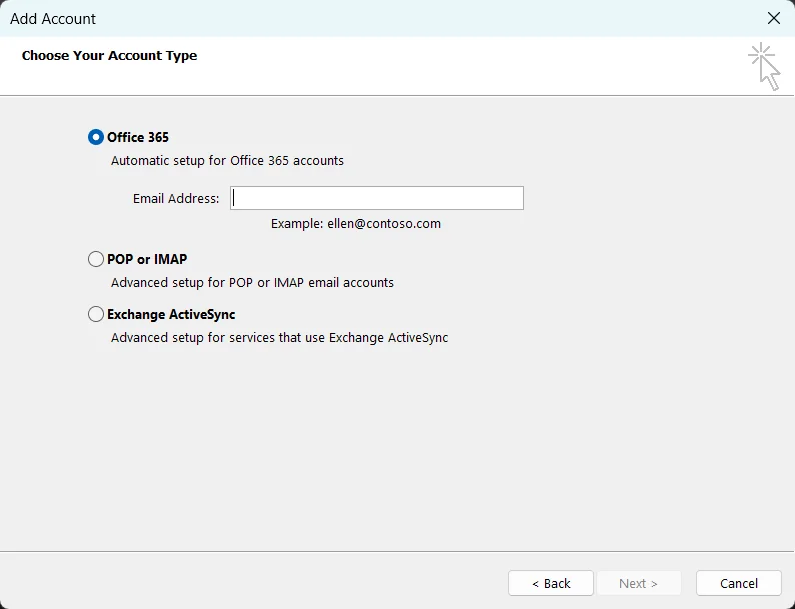
For an Outlook.com or Microsoft 365 address, the Office 365 option signs you in. A Gmail address needs IMAP and a Google app password, and Outlook 2019's connection test hung on the IMAP step for me, so I didn't get to the send. If you hit the same wall, either set up classic Outlook with an Outlook.com or Microsoft 365 account, or use one of the ways below.
Make a copy of your sheet with just two rows, both with your own email address, and run the whole merge on that. A mail merge can't be called back once Outlook starts sending, so it's worth the two minutes.
On a Mac, the steps are the same until the end, where you choose Mailings > Finish & Merge > Merge to E-mail and then Mail Merge To Outbox.
What an Outlook mail merge can't do
- No attachments from Word for Windows. Put a link to the file in the email instead. (Word for Mac can send the whole document as an attachment, but then the email itself has no text.)
- No Cc or Bcc. Every email goes to exactly one person.
- One subject line for everyone. You can't put a name in the subject.
- No follow-ups. It sends once. If someone doesn't reply, writing again is up to you.
- Everything goes out at once, as fast as Outlook can send it, which matters with the limits further down.
Way 2: Bcc, to send mass email without showing addresses
If the email doesn't need names in it, Bcc is the fastest way, and nobody sees who else got it.
- Start a new email. In classic Outlook, go to Options > Bcc to show the Bcc line. In the new Outlook and on the web, click Bcc at the end of the To line.
- Put your own address in To and paste everyone else into Bcc, separated by semicolons.
- Write the email and send it.
Everyone gets the same email, and a reply comes only to you. The catch is that it reads exactly like what it is, a message sent to a crowd, and there's a cap on how many people one email can go to (see the limits below). It's fine for "the office is closed on Friday". It's not how you'd write to a potential client.
Way 3: a contact group for people you email often
If you write to the same people again and again, save them once as a group:
- Classic Outlook: open People, then Home > New Contact Group. Add the members and click Save & Close.
- New Outlook and Outlook on the web: open People, then Home > New contact list. Name it, add people by email address and click Create.
Next time, type the group's name in Bcc. Everyone still gets the same email, so it's Bcc with less typing. Microsoft counts every member of a personal contact group separately toward your sending limits.
How to send a mass email individually in Outlook
People mean two different things by "individually", and Outlook handles them differently.
- Each person gets their own copy and can't see the others. Both ways above do this. A mail merge sends one separate email per row of your list, and Bcc hides the list from everyone. Only the mail merge can put each person's name in the email.
- Each person gets an email written for them, not the same paragraph with a name swapped in. Outlook can't do this on its own, because it only fills in fields from your list. That takes a tool that writes each email for the person, which is what the last part of this guide is about.
Can you send bulk email in the new Outlook?
Not with Word's mail merge, at least not yet. Word hands the emails to Outlook through a connection only the classic Outlook for Windows has. If you try with the new Outlook, Word either opens classic Outlook or the merge seems to finish and nothing is sent. The same goes for Outlook on the web.
The new Outlook has a basic mail merge of its own that sends separate copies of one email, but it can't fill in each person's name. Microsoft's roadmap lists an advanced version for the new Outlook and Outlook on the web that fills in personal details for each person, which Microsoft planned for September 2026. Roadmap dates move, so if you don't see it in your Outlook yet, use classic Outlook for now. Bcc and contact groups work the same in both.
Outlook sending limits: how many emails you can send
Microsoft limits how many people you can email in a day and in one message. These are the numbers on its own pages:
| Account | Per day | In one email |
|---|---|---|
| Outlook.com with a Microsoft 365 subscription | 5,000 recipients, of which 1,000 can be people you've never emailed before | 500 recipients |
| Free Outlook.com | Lower. Microsoft doesn't publish the number, and new accounts start lower still | Lower |
| Microsoft 365 for business (work email) | 10,000 recipients, and no more than 30 emails a minute | Set by your admin, up to 1,000 |
A mail merge to 300 people counts as 300 recipients. Microsoft also says plainly that its business email "isn't suited to accommodate bulk-mailing scenarios", and an account that sends a lot of similar emails to strangers can be blocked well before it reaches these numbers. Treat them as a ceiling, not a target. For emails to people who don't know you yet, a safer pace is about 50 a day from one inbox, a few minutes apart. That's the limit we build into PersonaSend.
When a mail merge is the wrong tool
A mail merge works well when people expect to hear from you: clients, members, guests, your team. It works badly for cold email, meaning a first email to someone who doesn't know you. Swapping a first name into the same paragraph doesn't make an email personal, and both readers and spam filters can tell. There are no follow-ups and everything goes out at once, so replies tend to be rare.
There's a legal side too. In the US, the CAN-SPAM Act says commercial emails need a working way to opt out and your postal address, and a Word merge won't add either for you.
That gap is what we built PersonaSend for. You upload the same Excel or CSV list and describe what you're offering once. The AI then writes a different email for each person, based on what your list says about them and, if you like, their company's website. You read and approve the emails, then PersonaSend sends them from your own Outlook.com or Microsoft 365 inbox at a safe pace, each one individually, with follow-ups, an unsubscribe link and your postal address. You connect Outlook with "Sign in with Microsoft", so PersonaSend never sees your password, and it works with the new Outlook too because nothing goes through Word. Paid plans start at $19 a month for 1,000 emails. If you'd like to see the difference first, the free bulk email sender writes personal emails for up to 5 people with no sign-up, and our cold email templates show what a good first email looks like.
If you're comparing tools for this, how to choose cold email software has the questions worth asking, ours included.
Questions people ask
How do I send a mass email in Outlook without showing every address?
Use a mail merge, which sends a separate email to each person, or put everyone in Bcc and your own address in To. With Bcc, nobody sees who else got the email.
How many emails can I send at once in Outlook?
Outlook.com with a Microsoft 365 subscription allows 5,000 recipients a day and 500 in one email. Microsoft 365 business accounts allow 10,000 recipients a day and up to 1,000 in one email, as set by the admin. Free Outlook.com accounts get less. A mail merge counts every email it sends.
Why is my Outlook mail merge not sending?
The most common reason is the new Outlook: Word's mail merge only sends through the classic Outlook for Windows. Switch back to classic, make sure Outlook is your default email app, and try again with a two-row test list. If Word opens an Add Account window instead, classic Outlook has no email account yet: add one there first.
Can I add an attachment to an Outlook mail merge?
Not from Word for Windows. Put a link to the file in the email instead. Word for Mac can send the document itself as the attachment, but then the email has no text of its own.
Can I put the person's name in the subject line?
Not with Word's mail merge. The subject line you type is the same for everyone; only the body can use fields from your list.
Is an Outlook mail merge good for cold email?
It's fine for people who know you. For cold email it sends the same paragraph to everyone, has no follow-ups and adds no unsubscribe link, so replies are rare. A cold email tool that writes each email for the person is a better fit.
How do I send a mass email individually from Outlook, so each person gets their own?
A mail merge sends one separate email per row of your list, so nobody sees the others. For emails that are different for each person, not just the name, a tool like PersonaSend connects to your Outlook or Microsoft 365 with Sign in with Microsoft and sends each person their own written email.
How we wrote this, and our sources
We make PersonaSend, so we're not a neutral reviewer, and we'd rather say that up front. To keep this fair, every fact about another product comes from that company's own pages, checked on 9 October 2026, and we say where those products do something we don't. Prices and limits change often, so check the links below before you rely on them, including ours.
- Microsoft Support: use mail merge to send bulk email messages
- Microsoft Support: sending limits in Outlook.com
- Microsoft Support: create a contact list or contact group in Outlook
- Microsoft Learn: Exchange Online limits (Microsoft 365 business)
- Microsoft 365 roadmap: mail merge for the new Outlook (item 423047)
- FTC: CAN-SPAM Act, a compliance guide for business
- PersonaSend pricing
Muhammad Hussain builds PersonaSend, an AI cold email tool for freelancers, agencies and small teams, and works every day on the parts of cold email that decide whether it works: what gets written, how fast it's sent, and what it costs. Questions or corrections are welcome on our contact page. LinkedInGitHub